YouTube Channel Design in 2026: Banner, Avatar & Thumbnail Sizes + AI Tools
A complete 2026 guide to designing your YouTube channel: current banner, avatar, and thumbnail sizes, consistent branding, a channel trailer, and a roundup of AI tools that assemble your design in minutes.

In short: upload your YouTube banner at 2560×1440 pixels (16:9 ratio, up to 6 MB), and keep everything important — name, logo, slogan — inside the central safe zone of 1546×423 pixels. This is the only area guaranteed to be visible on phone, tablet, desktop, and TV. YouTube crops everything else differently on each device.
We all know that YouTube replaced television long ago. It's more convenient: you can watch videos any time, not on the TV schedule. And it's more varied — there are videos about raising ostriches at home, makeup trends, and repairing a truck in a garage. Everyone finds something.

What, again? Traffic dropped and no sales? Then SEOquick will help you get it all back
We'll bring organic SEO traffic to your site from the Google and Bing search engines.
We'll carry out internal optimization and SEO promotion. We'll improve reputation and content. We'll run an audit and build up the link mass.
No black magic — only white-hat SEO methods!
Competition for attention is huge: a viewer forms a first impression of a channel in a fraction of a second — from the banner, avatar, and thumbnails. And that viewer is most often on mobile. So channel design matters no less than the videos themselves.
If you're still hesitating about whether it's time to bring your business to YouTube, here are the numbers: according to the platform, YouTube's audience exceeds 2.7 billion monthly active users, and more than 70% of views come from mobile devices. And the first thing that mobile viewer sees is your banner and avatar.
Creating a channel on YouTube
If you don't have a YouTube channel yet, this chapter is for you. Anyone with a Google account (a gmail.com mailbox) can create one.
- Go to youtube.com and log in with your Google account.
- Click your avatar in the top-right corner → "Create channel".
- Choose a channel name — it can be your name or any brand. In 2026 every channel also has a unique handle (@username) — a short address like youtube.com/@yourchannel that's worth matching to your handle on other social networks.
- Go to "Customize channel" (YouTube Studio → "Channel customization"). There are three tabs: "Layout", "Branding", and "Basic info".
If your channel's name duplicates your site's name, I recommend checking the title quality with our free "Title Quality Calculator". It will help optimize the title and make it more interesting for people and more popular in search results.
In the "Basic info" tab, fill in the channel description and add links to your site and social networks. Don't skip the description: not every visitor will watch a five-minute video, but reading a couple of lines in 10 seconds is within everyone's reach. A good description is also SEO: the first 100–150 characters land in the snippet and in YouTube search.
Congratulations, your channel is created. Now bring the design to perfection — starting with three key visual elements: the banner, the avatar, and thumbnails.
What a YouTube banner is and its sizes in 2026
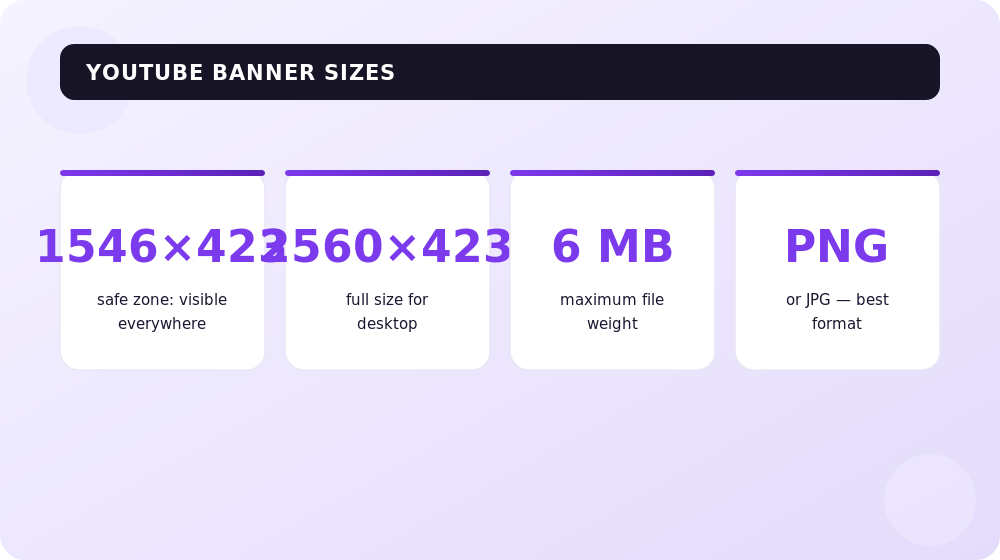
The banner (channel art) is the "cover" above the avatar and channel name. Its job is to tell a new visitor in a second what your blog is about and why they should subscribe.
The main difficulty is that YouTube uses one image for all devices, but shows different parts of it:
- Recommended upload size — 2560×1440 pixels (16:9 ratio). The minimum allowed is 2048×1152. Maximum file size is 6 MB; formats are JPG, PNG, GIF, BMP.
- Safe zone — 1546×423 pixels in the center. Only this is guaranteed to be visible on every screen. Place your name, logo, slogan, and release schedule here.
- Desktop shows roughly 2560×423 px (top and bottom are cropped).
- TV and YouTube TV are the only place where the full 2560×1440 image is visible without cropping. So the background should be cohesive and look good at full size.
The takeaway: paint the background across the full 2560×1440 canvas, and keep text and logo strictly within 1546×423.
How to upload a banner to YouTube
- Open YouTube Studio → "Channel customization" → the "Branding" tab.
- In the "Banner image" block, click "Upload" and choose a file from your computer.
- YouTube will immediately show a preview on phone, tablet, desktop, and TV — you can reposition and crop it.
- Click "Done", then "Publish". The changes apply to all devices.
What to add to your profile banner
- don't overload the small space — only clear text and the brief essence of the channel;
- take the choice of the main color seriously: it's exactly what people will associate with your brand;
- 2–3 concise phrases are enough: niche, value, and the release schedule, for example "Cooking. Recipes. Cook in 30 minutes";
- add a slogan and a schedule ("New video every Wednesday") — this raises the chance of a subscription;
- pick a background that matches the channel's topic: for a car blog, a nature photo is out of place, however beautiful.
When choosing a color, a quick color-psychology cheat sheet helps: white — purity and educational channels; red — passion and vivid emotions; yellow — positivity, life hacks, travel; light blue — calm and the "talking head" format; purple — creativity, premium feel, and recognition through contrast; blue — reliability and expertise; pink — beauty, fashion, style.
The canons of color psychology really do work. But if you decide to break the rules and make the banner flashy — let the content in the blog be just as bold and emotion-evoking.
The channel avatar: sizes and requirements in 2026
The avatar (profile picture) is what viewers see most often — next to videos, in comments, and in subscriptions. Requirements for 2026:
- Recommended size — 800×800 pixels (minimum 98×98), square.
- It's displayed as a circle, so keep everything important in the center, away from the corners.
- Up to 4 MB; formats PNG, JPG, GIF, BMP (no animation).
- What works best is either the author's face or a clear, concise logo. On a tiny avatar, small details aren't legible.
Recommended reading:
Video thumbnails and consistent channel branding
The banner and avatar greet the viewer once, but thumbnails work every day and directly affect CTR — the click-through rate of your videos.
- Thumbnail size — 1280×720 pixels (16:9), minimum width 640 px, up to 2 MB, formats JPG, PNG, GIF.
- In 2026, simplicity wins: one face, one message, understood in a second. According to industry data, thumbnails with more than three visual elements lose up to 23% CTR.
- Faces with strong emotion (surprise, excitement, curiosity) raise click-through by 20–30%.
- Visual cues — arrows, circles, an accent object — add up to 25% CTR.
- The average CTR for most channels is 4–6%; above 7% is considered excellent, and creators who test thumbnails on data reach 8–10%.
The main branding rule for 2026 is a visual system, not a one-off pretty picture. One or two brand colors, one font, a recognizable "frame" or element across all thumbnails. When a viewer scrolls the feed and instantly recognizes your thumbnails — that's your channel brand. Read more about video strategy in our video marketing guide.
The channel trailer and sections (home layout)
Beyond the banner and thumbnails, YouTube gives powerful tools for designing the home page:
- A trailer for new visitors — a short video (ideally 30–60 seconds) with a hook in the first 5 seconds: who you are, what the channel is about, and why to subscribe.
- A video for returning subscribers — a separate "watch this next" clip. Your regular audience doesn't need a welcome — it needs a recommendation.
- Home sections — up to 12 blocks (popular, recent uploads, playlists, Shorts, live streams). They answer the viewer's single question: "What should I watch next?". Don't overload the home page — 4–6 thoughtful sections work better than a dozen.
Examples and anti-examples of YouTube banners
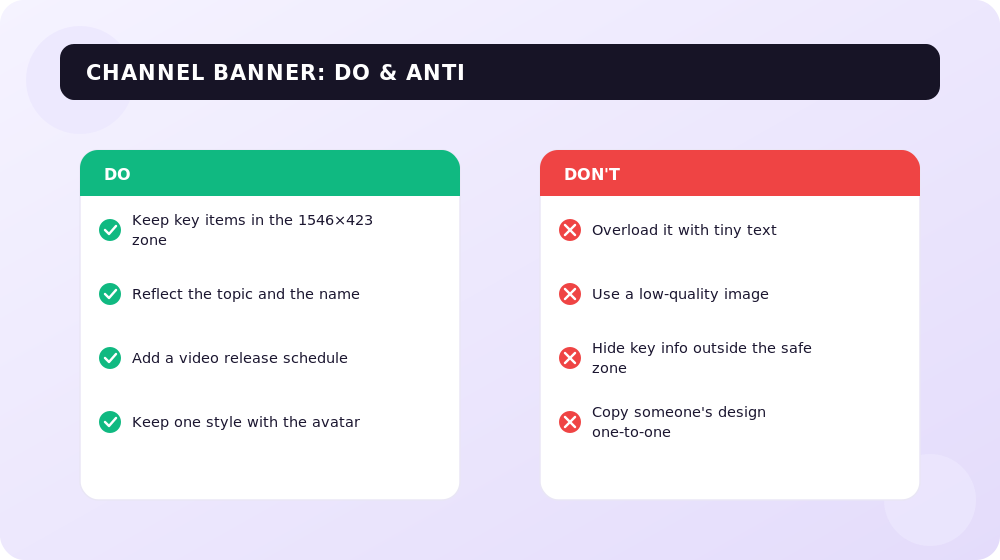
You can talk about the secrets of the perfect banner for a long time, but it's more effective to analyze successful and failed covers of real channels.
- An empty "photo + name only" banner. A common mistake: the banner has just the author's portrait and a duplicated name. The colors may be chosen correctly (a calm gradient, accent details), but a new viewer doesn't understand what the channel is about. Just add "Interviews. Business. Politics" and "New video every Monday" — and the banner starts working.
- An informative banner with a schedule. A good example is a banner with the name, the slogan "Become a better version of yourself", and a release schedule. Even without video titles, it's clear: the channel is about self-development. Associative details (a notebook, paper clips) reinforce the time-management theme.
- A bright thematic banner. Keywords directly answer the question "what is the blog about?", and in the center is a recognizable character or author. It's memorable and instantly conveys the niche.
- "Logo only" minimalism. This works for already well-known brands and media: the audience knows them anyway. But for a newcomer, a concise logo with no explanation says nothing — they need words about the channel's value.
How to create a banner and thumbnails for YouTube: 2026 tools
Adobe Photoshop used to be the leader, but it's paid and slow. Today you can assemble your design in minutes — and often for free. Here are the working approaches for 2026.
1. Template online editors (Canva and analogues)
The Canva service remains the easiest entry point. It has a free version, ready-made templates for every element, and exact sizes out of the box — you don't have to remember 2560×1440.
- Register (via Google or Facebook).
- In the search, type "YouTube channel art" — don't confuse it with "cover", by which Canva means a short video preview.
- Choose a template by niche (music, beauty, travel, education), change the text, images, and fonts.
- Download a ready banner, avatar, and a set of thumbnails in a single style.
Close analogues are VistaCreate (formerly Crello) and Adobe Express: they also have free tiers, templates by category, and built-in YouTube sizes.
2. AI design and thumbnail generators
The main trend of 2026 is generative AI. According to industry data, AI thumbnail tools have become standard and are used by roughly 65% of creators for speed and proven formats:
- Image generators (Ideogram, Midjourney, Adobe Firefly) create a banner background or a thumbnail scene from a text description; Ideogram is especially strong at legible text on an image.
- AI thumbnail editors (Canva Magic Studio, dedicated thumbnail generators) assemble a thumbnail with a face, an accent, and brand style in minutes.
- Analytics services like vidIQ suggest thumbnail and title ideas based on competitors and help you A/B test.
Important: AI speeds up the work but doesn't replace taste. Observations show that custom thumbnails still beat pure AI generation in most niches. The best approach is to assemble a draft with a neural network and then refine it for your brand by hand.
3. A ready-made template from search
If you're at the very start and your energy goes into content, you can temporarily grab a ready-made banner from Google. The selection is small, but the space won't stay empty. Important: search only for images licensed for use, otherwise you risk infringing copyright.
Frequently asked questions about YouTube channel design
What banner size is current for YouTube in 2026?
Upload an image at 2560×1440 pixels (16:9, up to 6 MB). The minimum allowed size is 2048×1152. Keep all important content in the 1546×423-pixel safe zone in the center — it's visible on all devices.
What is the safe zone and why does it matter?
The 1546×423 px safe zone is the only area of the banner guaranteed to display on phone, tablet, desktop, and TV. If your name or logo extends beyond it, mobile will crop them and viewers won't see them.
What are the avatar and thumbnail sizes on YouTube?
The avatar is 800×800 pixels (square, displayed as a circle, up to 4 MB). The video thumbnail is 1280×720 pixels (16:9, up to 2 MB). These formats are stable in 2026 too.
What's the difference between a banner, an avatar, and a thumbnail?
The banner is the large image above the channel name. The avatar is the small profile picture next to videos and in comments. The thumbnail is the preview of a specific video in the feed. The first two shape the channel's image; the thumbnail sells each individual video.
Can I design everything with AI and for free?
Yes. The free tiers of Canva, VistaCreate, and Adobe Express cover the basics, and AI generators (Ideogram, Firefly, Canva Magic Studio) assemble backgrounds and thumbnails from a text prompt. Final brand refinement is best done by hand.
How does channel design affect subscriptions and views?
The banner and avatar form the first impression and the decision to subscribe, while the thumbnail directly affects CTR — for most channels it's 4–6%, and for those who test thumbnails it reaches 8–10%. Consistent branding across all elements increases recognition and audience retention.
Conclusions
If you're not on YouTube yet — it's time to fix that: more and more people choose the platform over ordinary television. To avoid getting lost among millions of channels, you need a catchy yet informative design system: a 2560×1440 banner with a 1546×423 safe zone, a tidy 800×800 avatar, 1280×720 thumbnails in a single style, and a thoughtful home layout with a trailer.
And even if you're not a designer, there's no reason to despair: free editors and AI tools will assemble professional design in mere minutes — all that's left is to add your own character.
YouTube Thumbnails: Sizes, Design Rules, and 10 Types of Clickable Covers
How to make a clickable YouTube thumbnail: exact sizes (1280×720), the rule of thirds, 10 cover types with real examples from our channels and MrBeast, Test & Compare experiments. SEOquick's experience: YouTube drives +40% of our revenue.
Read →
Instagram Profile Design in 2026: A Guide to Design, SEO and Sales
How to design an Instagram account in 2026: a searchable name and username, bio, avatar, current sizes, a unified visual, AI tools and link-in-bio.
Read →
YouTube video promotion: growth checklist for 2026
How to promote YouTube videos: research, script, title, thumbnail, description, retention, Shorts, external traffic, analytics, and leads.
Read →Want to apply this to your site?
We will review the current situation, find the first growth levers, and suggest a practical working format.