How to Download Video from YouTube in 2026: Legal Methods for PC and Phone
Legal ways to download video from YouTube in 2026: the official Premium offline app, exporting your own videos from Studio, and an honest copyright warning.

The safest and most legal way to download video from YouTube in 2026 is to get YouTube Premium and save videos offline right inside the app, and to export your own videos through YouTube Studio. Everything else — third-party online services, extensions, and desktop programs — operates in a gray zone: it violates YouTube's Terms of Service, and after the 2026 DMCA court ruling it carries real legal risk when reusing someone else's content commercially.
Below we break down every working method in 2026: for phone and PC, for your own videos and others', with a strict line between "allowed" and "at your own risk."
What YouTube's Rules Say in 2026
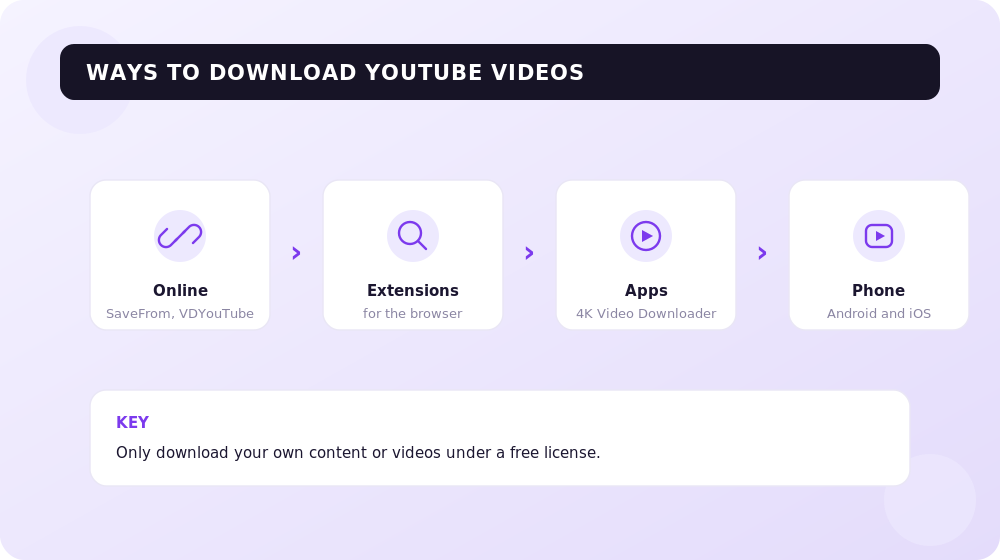
Before you hit "Download," it's important to understand the boundaries. YouTube's Terms of Service explicitly prohibit downloading content by any means other than those the service itself provides — for example, the offline-save button in YouTube Premium.
Legally, the situation in 2026 remains unsettled. Downloading a single video for personal offline viewing is, in most countries, a civil "gray zone" rather than an obvious crime. But the moment it involves re-publishing, commercial use, or mass downloading of someone else's content, the risks become very real.
Remember the three safe scenarios that draw no objections:
- downloading via YouTube Premium for personal offline viewing inside the app;
- downloading your own videos from YouTube Studio;
- downloading content under a Creative Commons license or with the author's direct permission.
The fair-use doctrine is not permission granted in advance — it's a defense argument raised in court. You shouldn't rely on it as a "green light": courts assess each case individually.
Method 1. YouTube Premium — Official Offline Downloading
This is the only method officially sanctioned by YouTube for saving other people's videos to watch without internet. In 2026, a full YouTube Premium subscription costs around $13.99 per month, while the more affordable YouTube Premium Lite tier (from $7.99 per month, available in over 20 countries) also gained offline downloads and background play in February 2026.
How to download a video in the app on your phone:
- open the video in the YouTube app on iOS or Android;
- tap the "Download" button under the video (or under a playlist — Premium lets you save entire playlists);
- choose the quality;
- find what you saved under "Library" → "Downloads".
The Smart Downloads feature is also worth mentioning: Premium can automatically queue recommended videos for offline viewing.
Important limitations you should know up front: downloaded files are encrypted and "live" only inside the YouTube app. You cannot export them to a computer, transfer them to another device, or open them in a third-party player. Downloads expire after 30 days without a network connection, and if you cancel the subscription, everything you saved disappears. There's no full 4K download or desktop support in this scenario.
Method 2. Your Own Videos — Through YouTube Studio
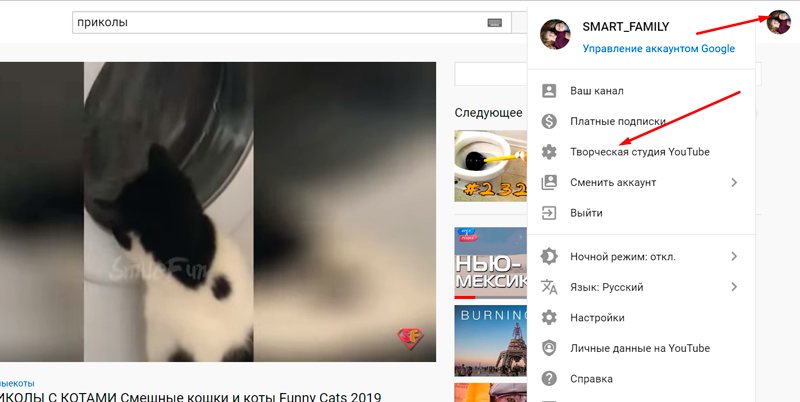
If you're a channel owner and need a backup of your own content, this is the cleanest and fully legal path. No third-party services: YouTube hands you the file itself.
On a computer:
- open YouTube Studio;
- go to the "Content" section;
- select the video you need and click "Download" in the actions menu.
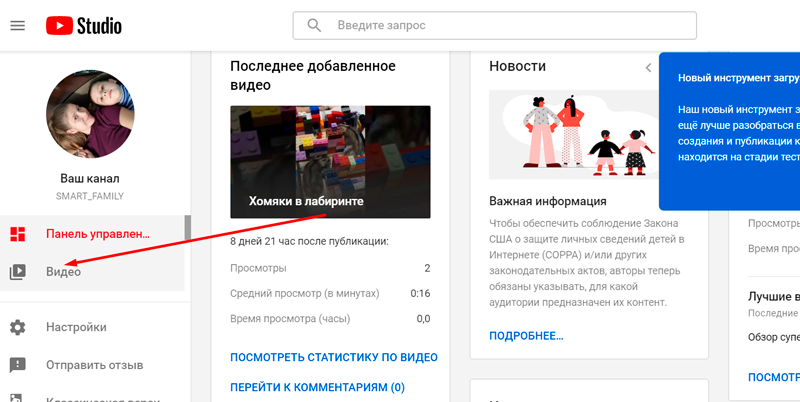
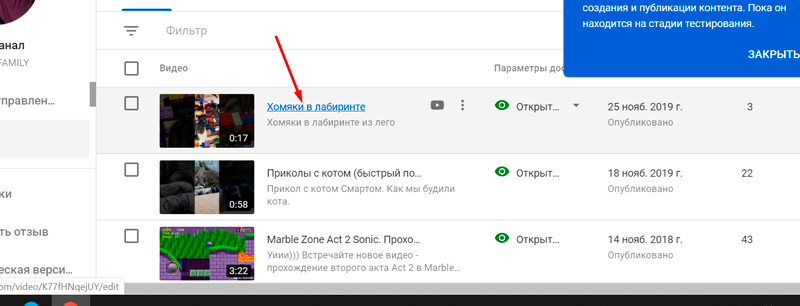
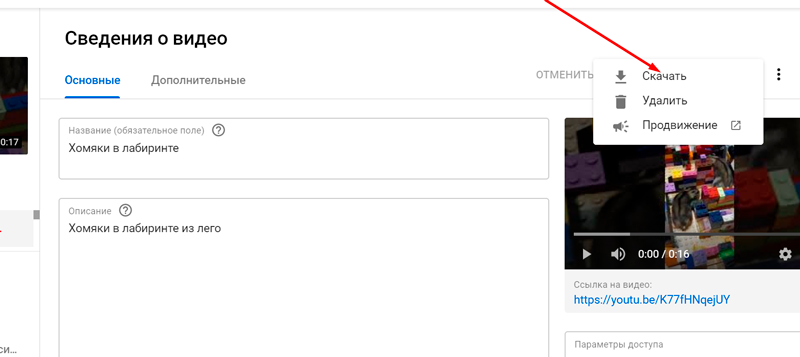
What to keep in mind per Google's official help: the file is exported in MP4 format, though the quality may be limited to 720p or 360p depending on the video. You can download one video at a time, and no more than 5 times per 24 hours for a single video.
On a phone (iPhone/Android) the path is similar: open the YouTube Studio app, go to "Content", select the "Videos" or Shorts tab, find the video you need, and choose "Save to device" from the menu. On iPhone the file lands in the Files app → "On My iPhone" → "Downloads".
Need to export many videos at once, or your whole channel archive? Then it's more convenient to use Google Takeout — it exports all your YouTube data, including uploaded videos, in a single package.
How to Grow Your Channel?
If you're downloading your own videos for backup, you're most likely growing your channel. Study the step-by-step checklist on YouTube channel promotion from SEOquick: a well-built semantic core in descriptions and tags, quality content, and work on channel authority all help you grow organically.
And to learn how to weave videos into your overall promotion strategy, read our guide to video marketing.
If you want to get a custom promotion plan for your YouTube channel, leave me your contacts below.

What does your competitor have that you don't yet? That's right — traffic. SEOquick to the rescue!
We'll bring a flood of traffic to your site through SEO.
We'll do it using purely white-hat methods, with no filters or penalties from Google.
We'll run a deep optimization: strengthen content, build links and reputation. And it'll all work out!
Method 3. Desktop Programs (At Your Own Risk)
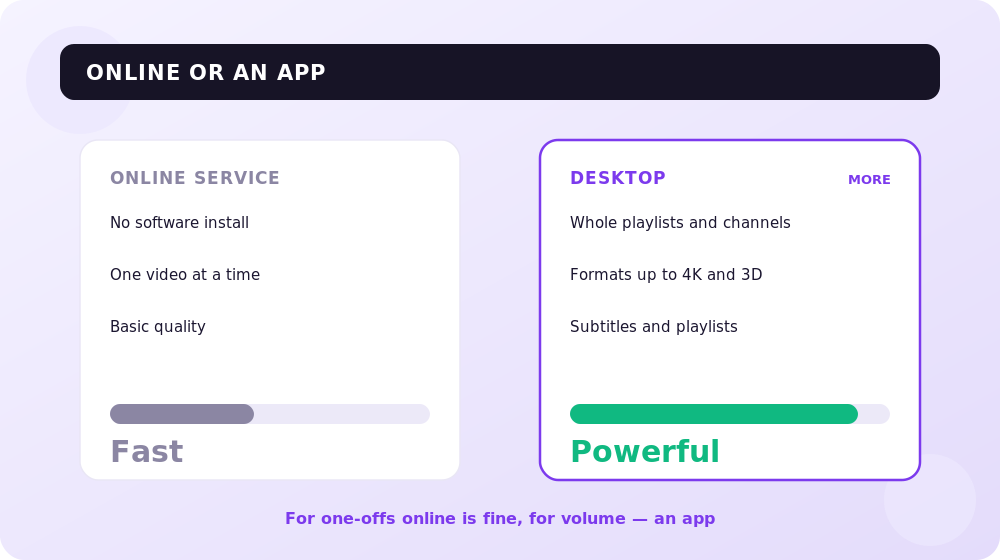
Third-party PC programs remain the most flexible in terms of quality and formats, but remember: using them on someone else's content violates YouTube's Terms of Service. Apply them only to your own videos or to content you hold the rights to.
An important nuance in 2026: YouTube constantly changes its protections. Independent testing in March 2026 found that out of 15 tools checked, only 6 worked reliably — the rest break after each platform update.
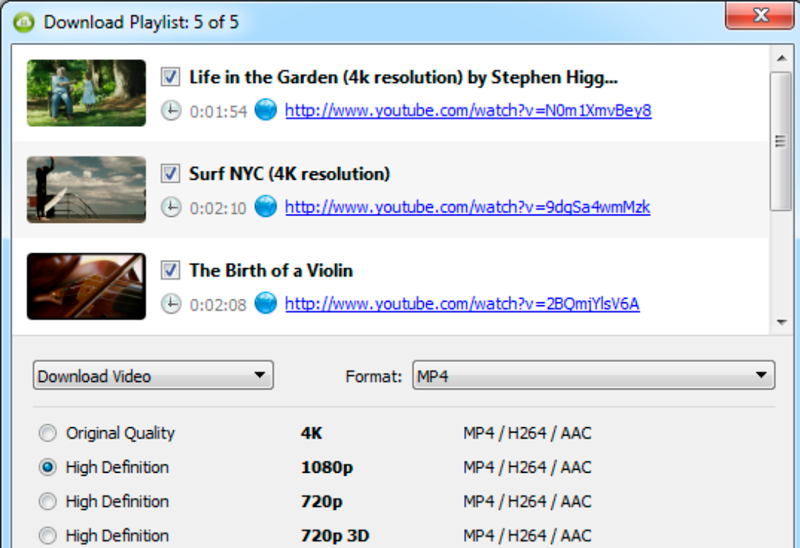
4K Video Downloader
One of the few desktop tools that updates regularly and stays compatible with YouTube's changes. Available for Windows, macOS, and Linux, with a clear graphical interface. A good fit for those who don't want to fuss with the command line.
yt-dlp
An open-source command-line tool. By itself it's legal — it's just software; whether downloading is lawful depends on whose content it is and what's done with it. The main advantage of yt-dlp is that, as an open-source project, it adapts to YouTube's changes faster than anything else. Suited to technically savvy users.
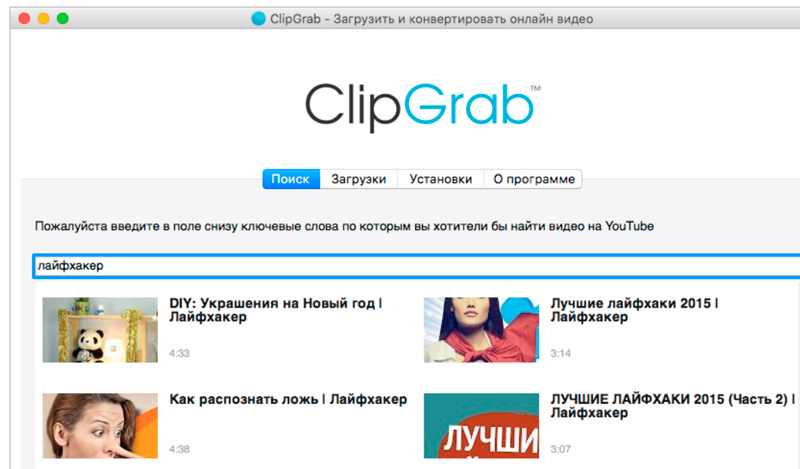
ClipGrab
A simple free program with a basic feature set. Handy for one-off tasks, but it updates less often, so it may occasionally "break" after YouTube updates.
A security warning: YouTube can detect accounts that use third-party downloaders and issue warnings. The risk grows in proportion to download volume. On top of that, many shady "free" downloaders and online services carry a separate threat — ad redirects, intrusive extensions, and malware.
Method 4. On Your Phone Without Any Software
On a smartphone the priority is the same: YouTube Premium for others' videos and YouTube Studio for your own. This covers 99% of real-world needs and doesn't break the rules.
If it's about your own videos on iPhone, the most convenient option is to save them to the Files app, from where the video can be moved to your gallery via the "Share" button. On Android, your Studio-exported files are also saved to device storage and accessible in any player.
Third-party online services and apps for downloading other people's content on a phone do exist, but we deliberately don't recommend them as a primary method: it's a ToS violation, a risk to your account, and a frequent source of security problems on mobile platforms.
Recommended reading:
Frequently Asked Questions
Is it possible to download YouTube videos legally at all?
Yes, in three cases: via the YouTube Premium offline feature, when downloading your own videos from YouTube Studio, and when working with content under a Creative Commons license or with the author's permission. Everything else conflicts with YouTube's Terms of Service.
Do you need a YouTube Premium subscription to download videos?
For official offline viewing of others' videos — yes. Premium (around $13.99/mo) or the more affordable Premium Lite (from $7.99/mo) let you save videos and playlists right in the app. Your own videos, though, the creator downloads for free through Studio.
Can you download a YouTube video in MP4 in high quality?
Your own videos via Studio are exported in MP4, but quality may be capped at 720p or 360p. Files from YouTube Premium can't be exported at all — they're encrypted and live only in the app. High resolution (4K/8K) is provided only by desktop programs, but applying them to someone else's content is a ToS violation.
Is it legal to use third-party downloader sites?
They violate YouTube's Terms of Service. After the 2026 DMCA court ruling, commercial use and re-uploading of someone else's content downloaded through such services carries real legal risk. For personal viewing of a single video the practical risk is low, but the legal "gray zone" remains.
How do you download an entire channel or playlist at once?
If it's your channel, use Google Takeout: it exports all your uploaded videos in a single package. YouTube Premium lets you save entire playlists, but only for offline viewing inside the app, without exporting the files.
Is it safe to download videos through online services?
Often not. Many free online downloaders survive on aggressive advertising, redirects, and pushed extensions, and some distribute malware. If you do download, choose proven desktop programs and only for content you hold the rights to.
Conclusion
In 2026, the question "how to download video from YouTube" is better framed as "how to download legally and safely." The answer is simple: for others' videos — YouTube Premium; for your own — YouTube Studio; for a mass backup of your channel — Google Takeout.
Third-party services, extensions, and programs still exist and are sometimes convenient, but it's a gray zone: a Terms-of-Service violation, a risk to your account, and potential copyright problems with any commercial use. Use them consciously and only on content you hold the rights to.
And if you're growing your own YouTube channel, downloading videos is only a small part of the work. Systematic promotion matters far more: content, optimization, and traffic. SEOquick can help with that — leave your contacts and we'll put together a custom plan for you.

Best AI SEO Tools in 2026: A Roundup by Task and Price
A 2026 roundup of the best AI SEO tools by task and price: Ahrefs, Semrush, Surfer SEO, ChatGPT, Claude, Profound, Otterly. Which stack to assemble for your budget — a breakdown from SEOquick.
Read →
YouTube video promotion: growth checklist for 2026
How to promote YouTube videos: research, script, title, thumbnail, description, retention, Shorts, external traffic, analytics, and leads.
Read →
How to Run a YouTube Channel (Checklist)
How to upload videos, which settings you need to know, what to enable and what can bury your channel. A detailed checklist for the content manager.
Read →Want to apply this to your site?
We will review the current situation, find the first growth levers, and suggest a practical working format.